This tutorial is for a channel point redeem that takes a screenshot of a camera source (raw) from a selected scene in OBS Studio (using Streamer.bot), which is then posted into a channel on Discord. Capturing a screenshot with all of the overlays is slightly more complicated requiring referencing a previously defined scene (and is not covered). Similarly, an on-stream visual/sound effect are also not covered.
An importable action script is located at the bottom (though I recommend also reading through this to see how the script actually works).
Please see the note in Step 6 regarding the security considerations of running this bot.
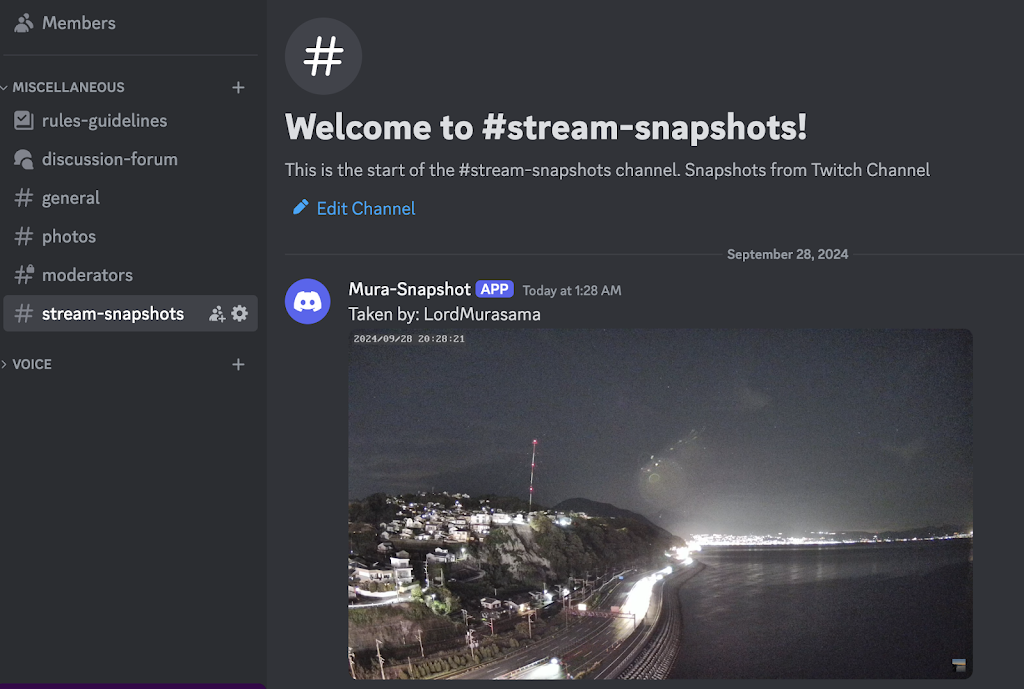
Note: this requires an OBS setup running on a Windows based PC since Streamer.bot is a Windows only application.
Step 1: Download Streamer.bot
Step 2: Extract the files from the downloaded zip file into its own folder.
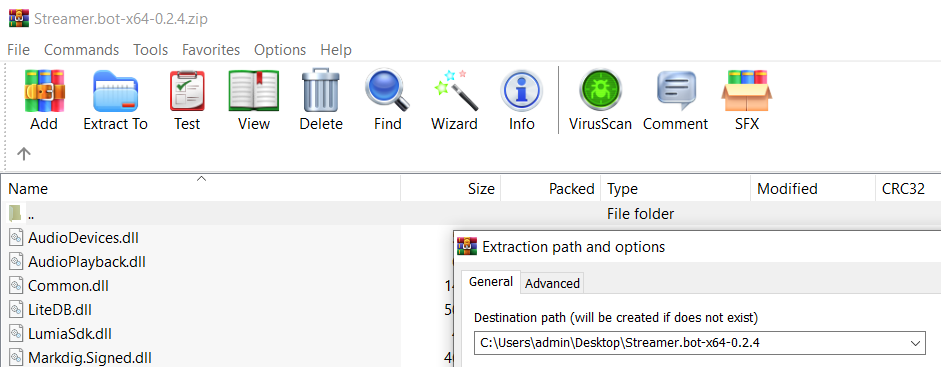
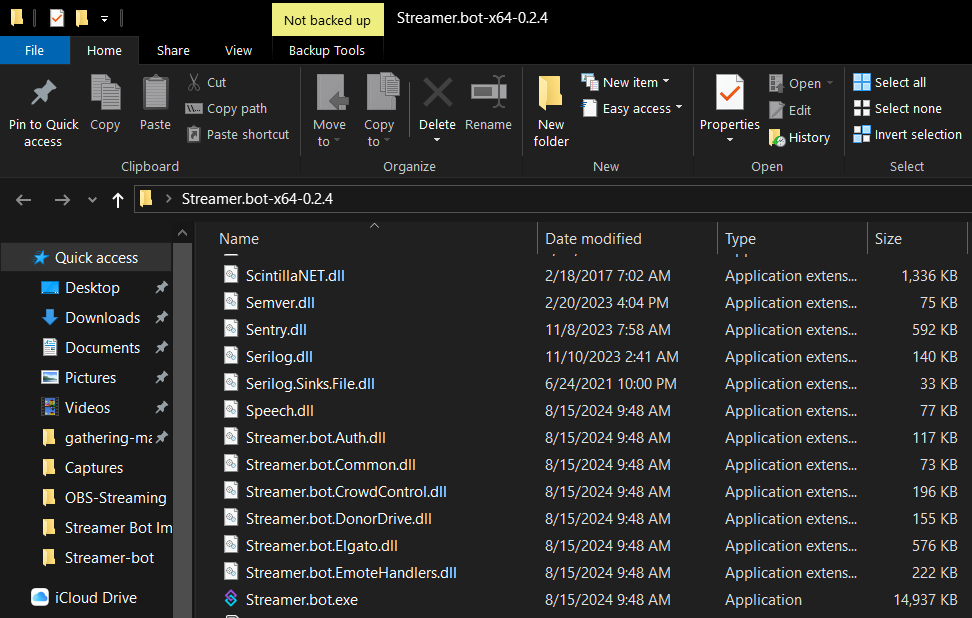
Note: Feel free to make a shortcut of Streamer.bot.exe to the desktop. Streamer.bot needs to be running along with OBS Studio for the programmed actions to work while streaming. It can set to run minimized in the System Tray in the Settings tab.
The following steps will connect Streamer.bot to OBS and Twitch.
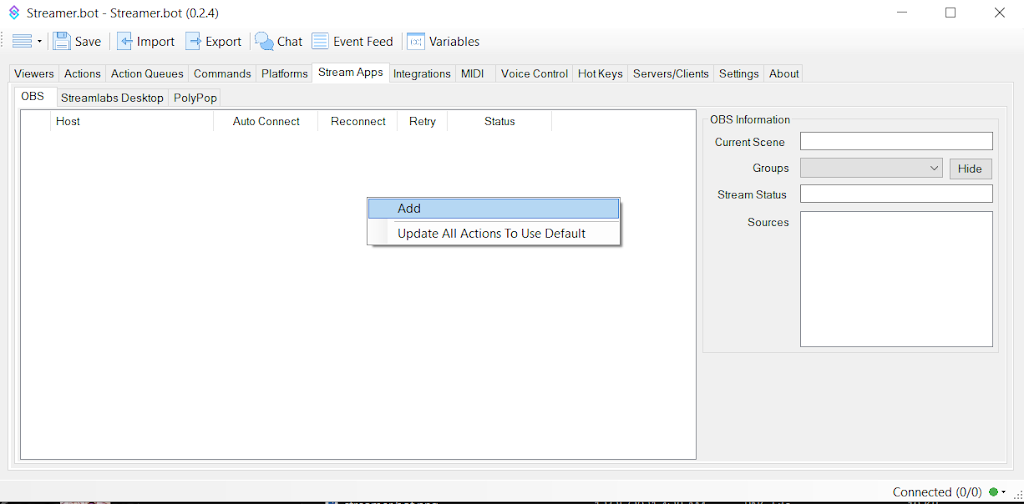
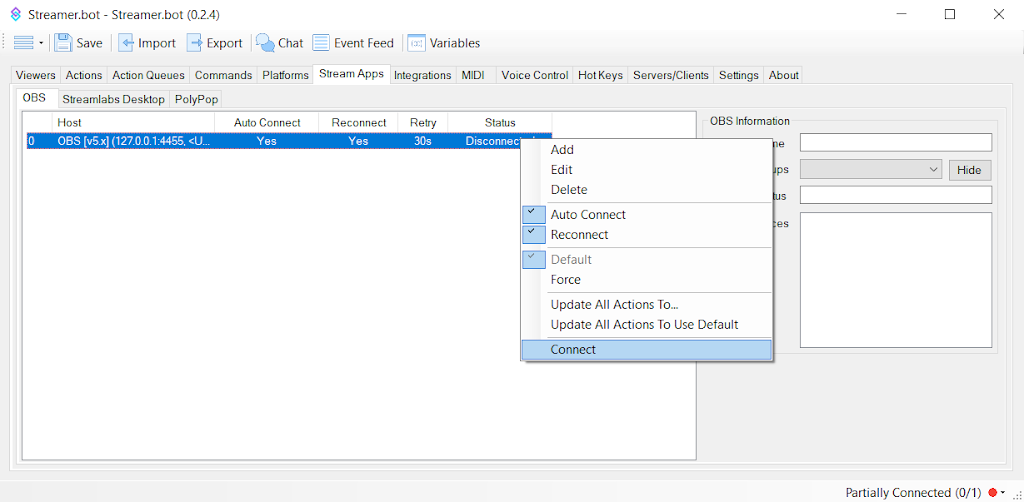
Step 3: Launch Streamer.bot, select the Stream Apps tab, select the OBS tab, right-click and select Add (this is to connect OBS to Streamer.bot).
Note: the screenshots are from the older pre-1.x.x version (the 1.x.x version has a better looking user interface but functions the same way).
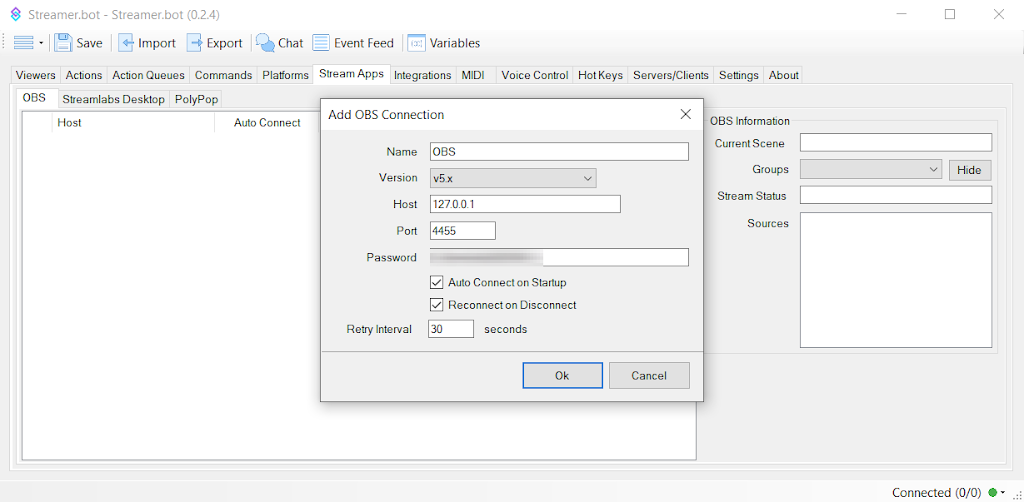
Step 4: In the Add OBS Connection dialog box, select v5.x. The rest of the information needs to match the one in OBS for its WebSocket Server settings. Host will be the localhost 127.0.0.1 IP address (if OBS is running on the same machine as Streamer.bot). The port will be 4455 if it hasn’t been changed in OBS and whatever password that is set in OBS.
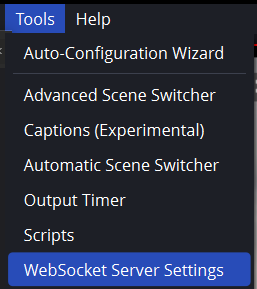
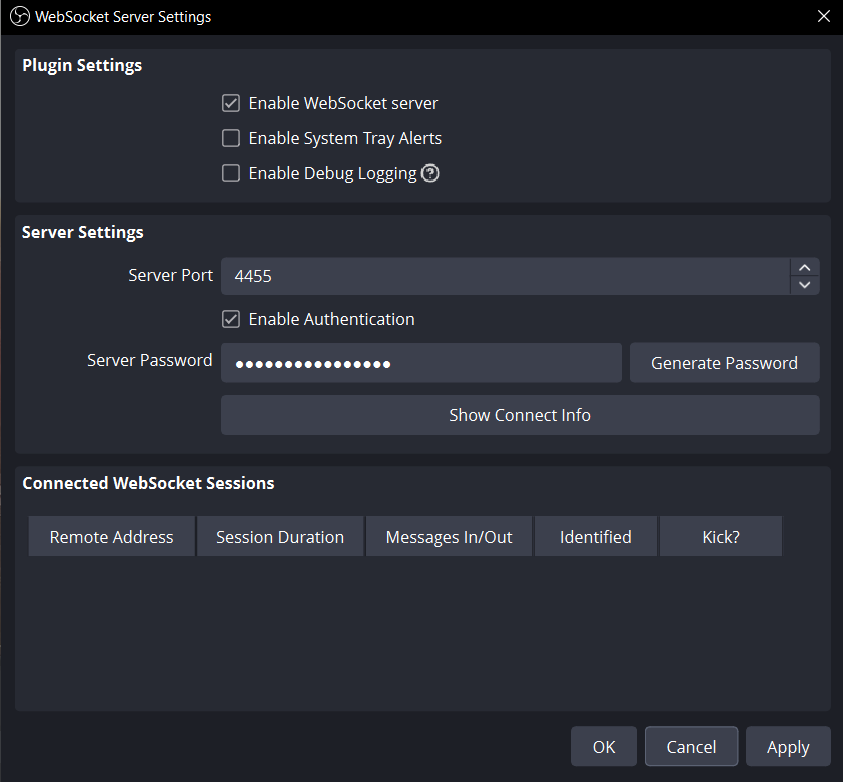
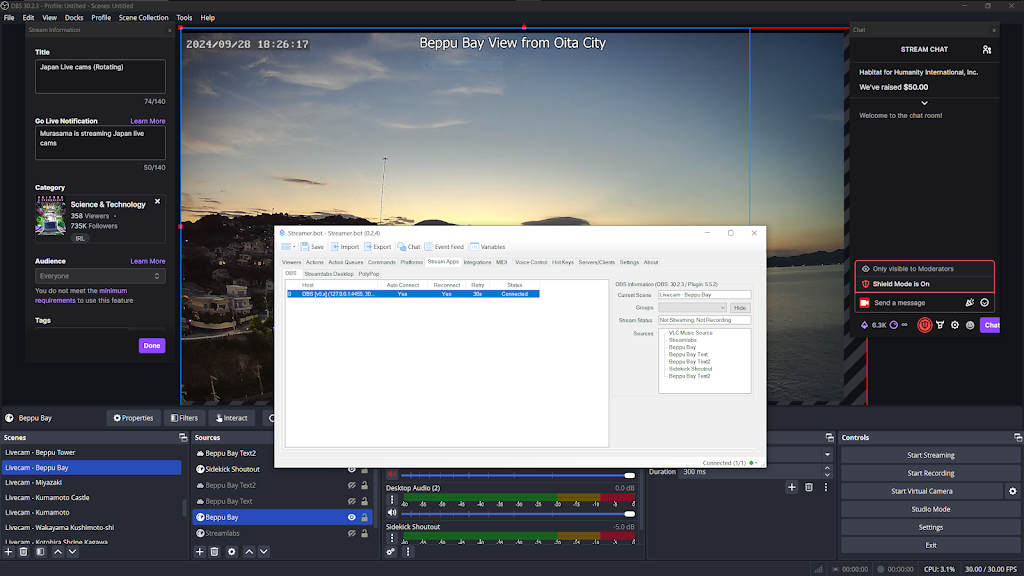
Step 5: Connect to the OBS Websocket connection that was just created in Step 4.
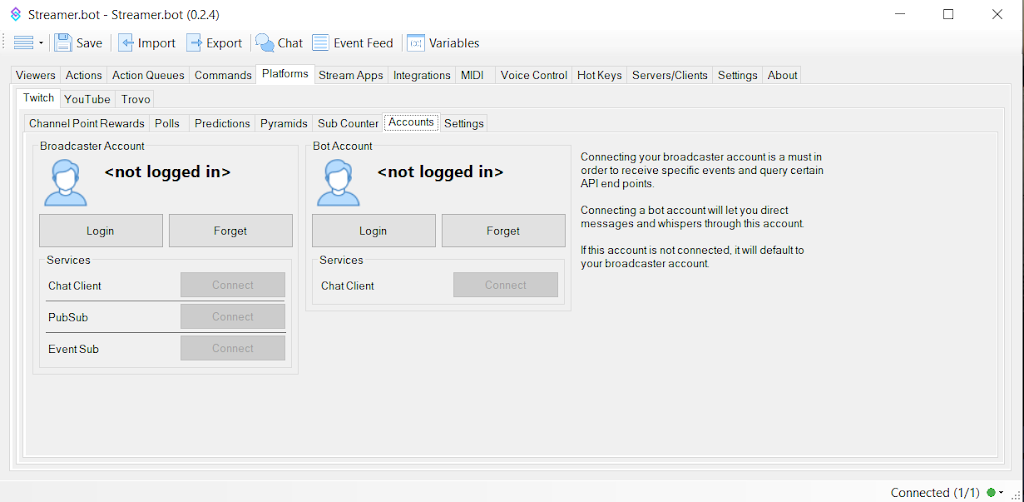
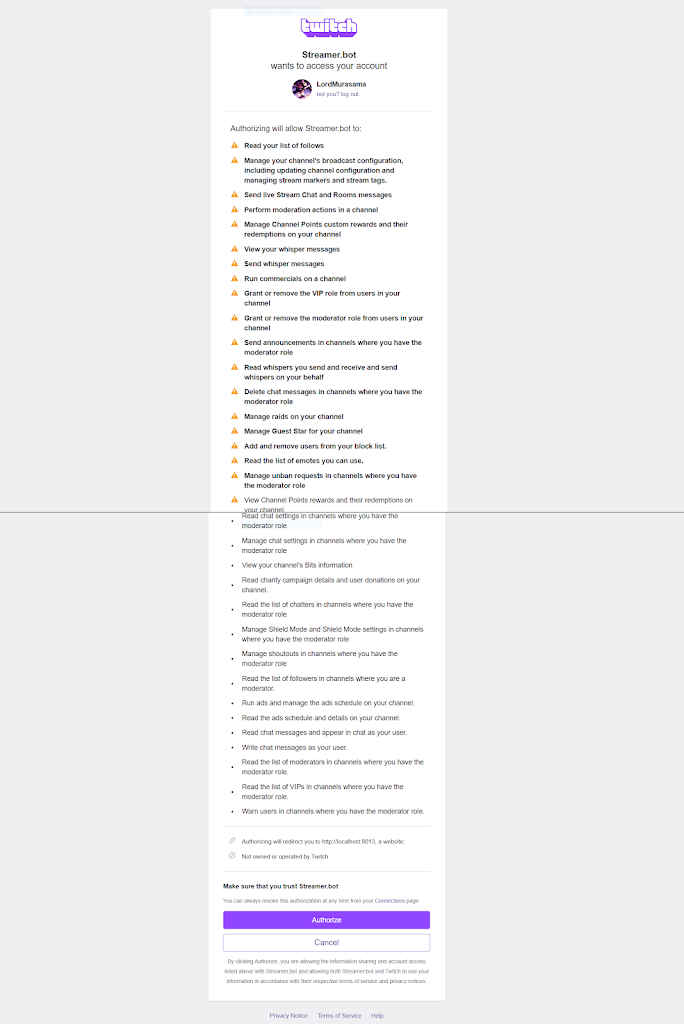
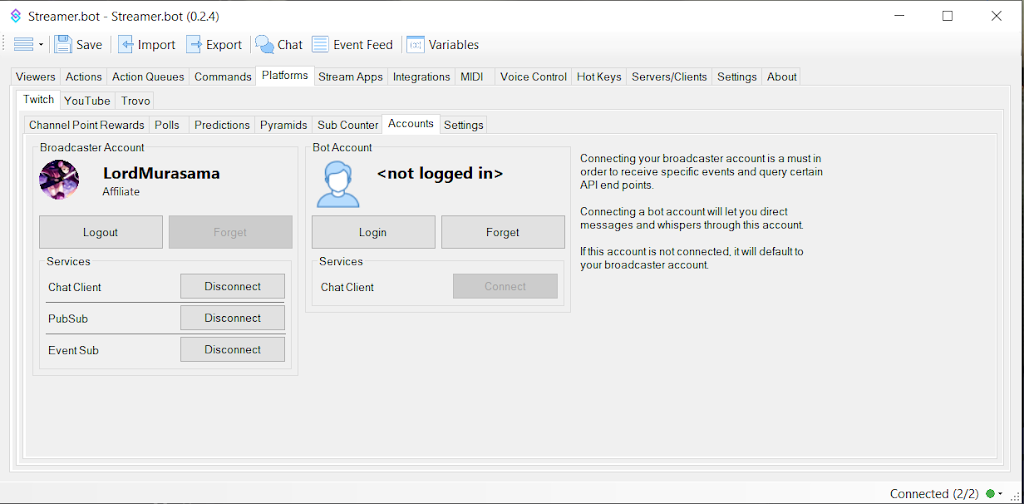
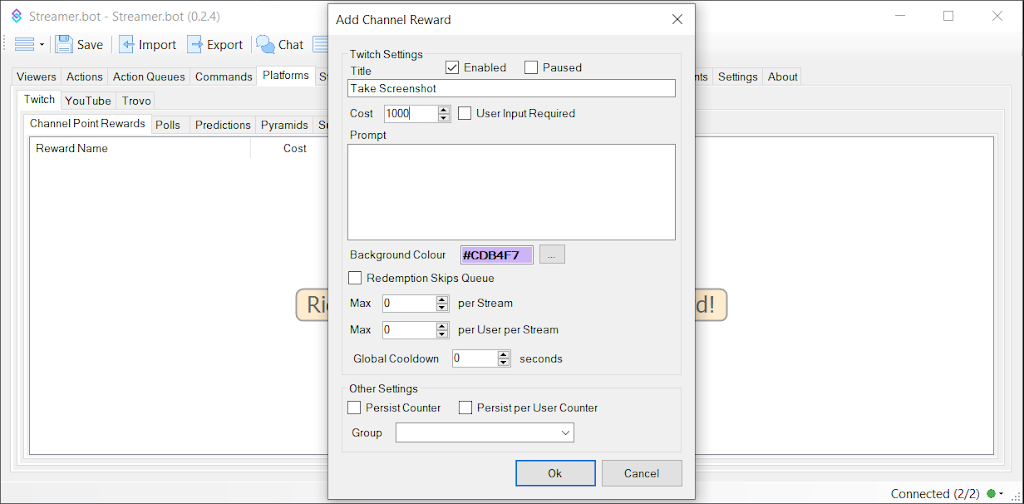
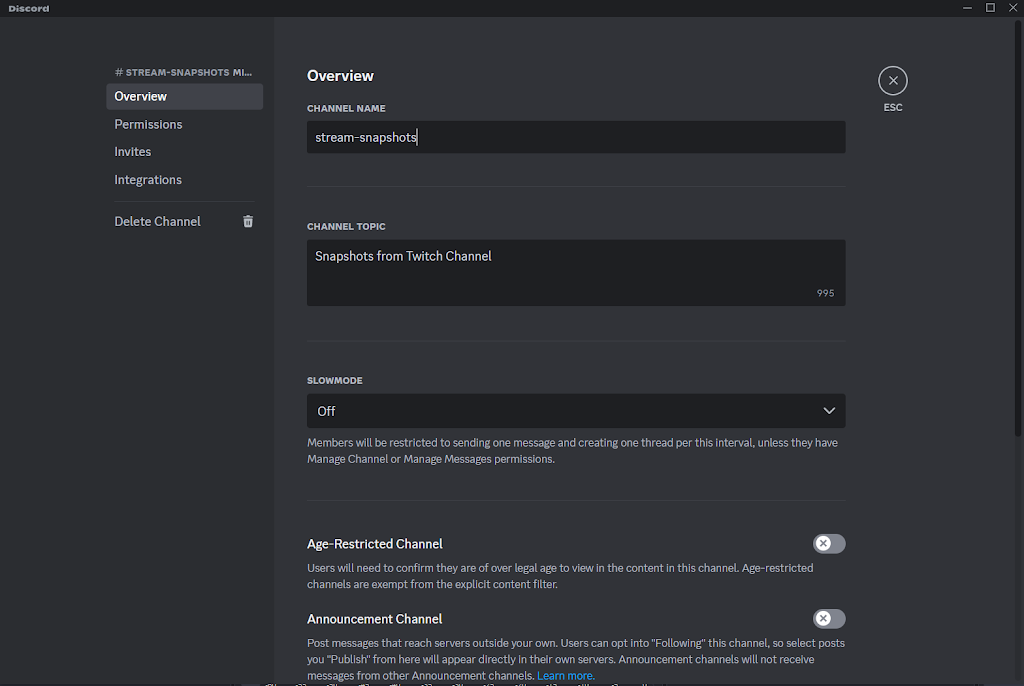
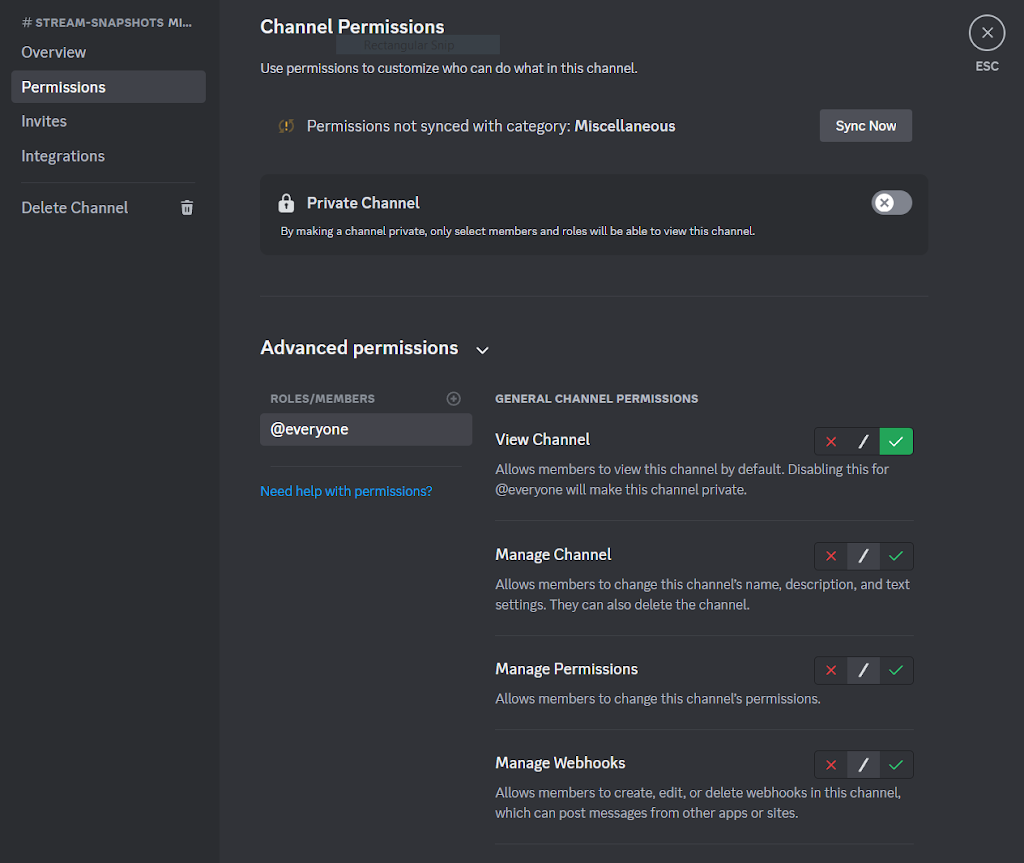
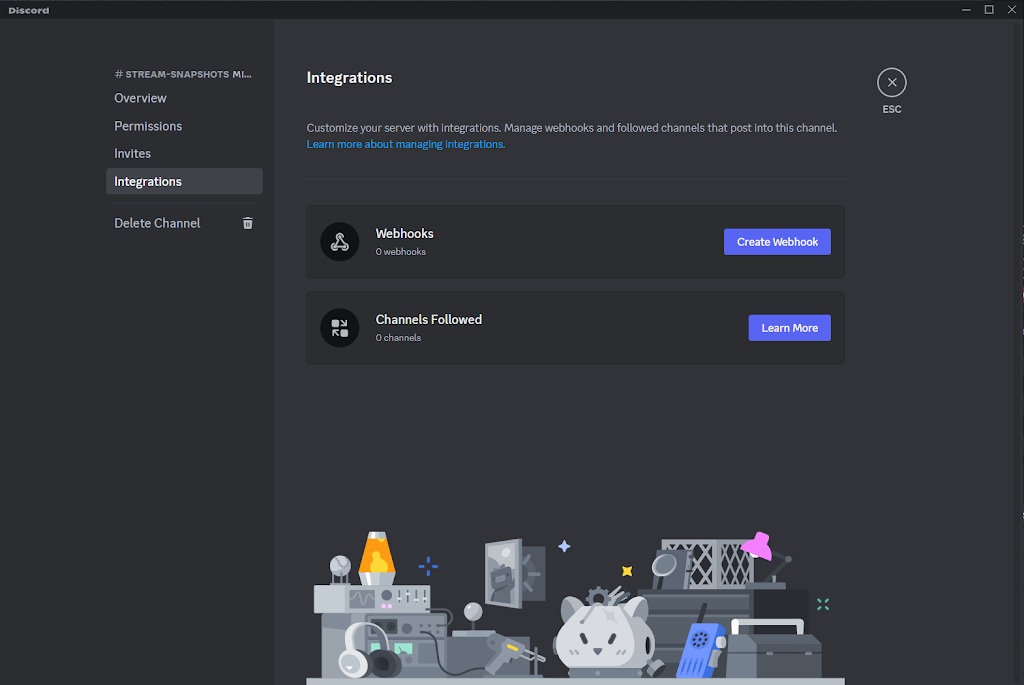
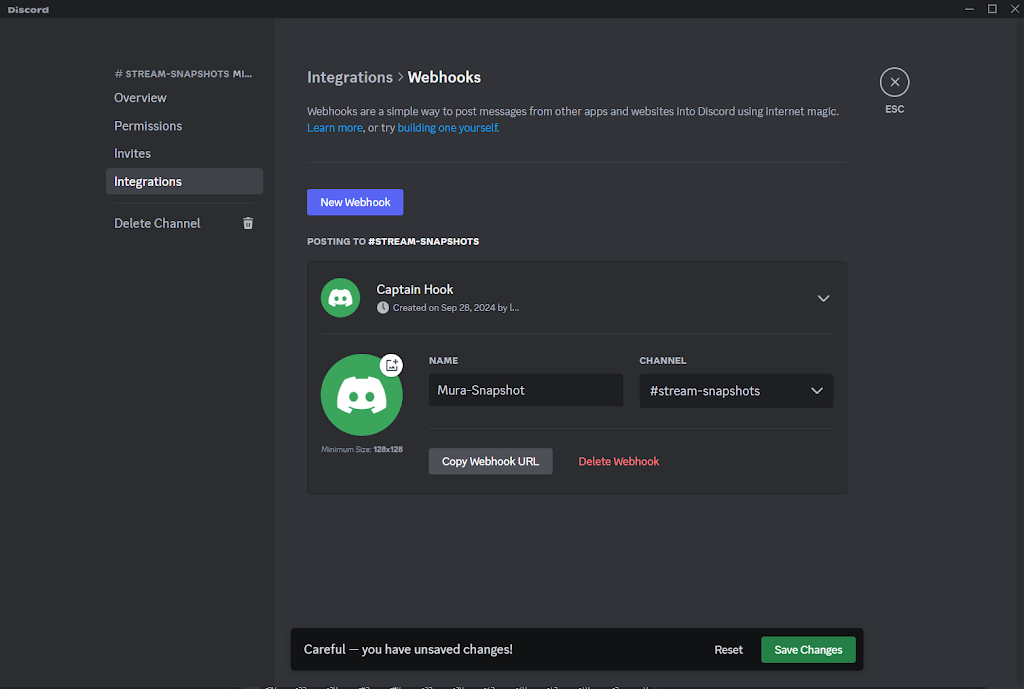
Step 9: Select Integrations after creating the channel and click the Create Webhook button.
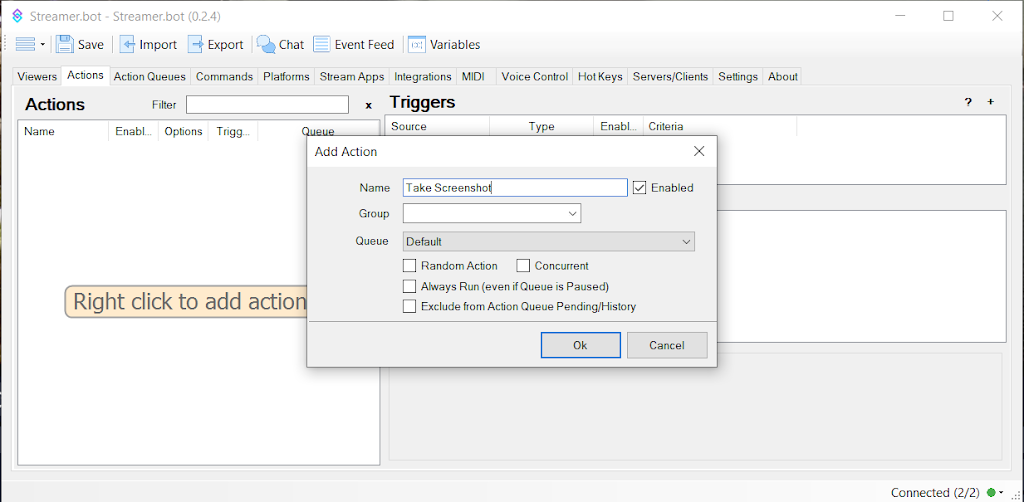
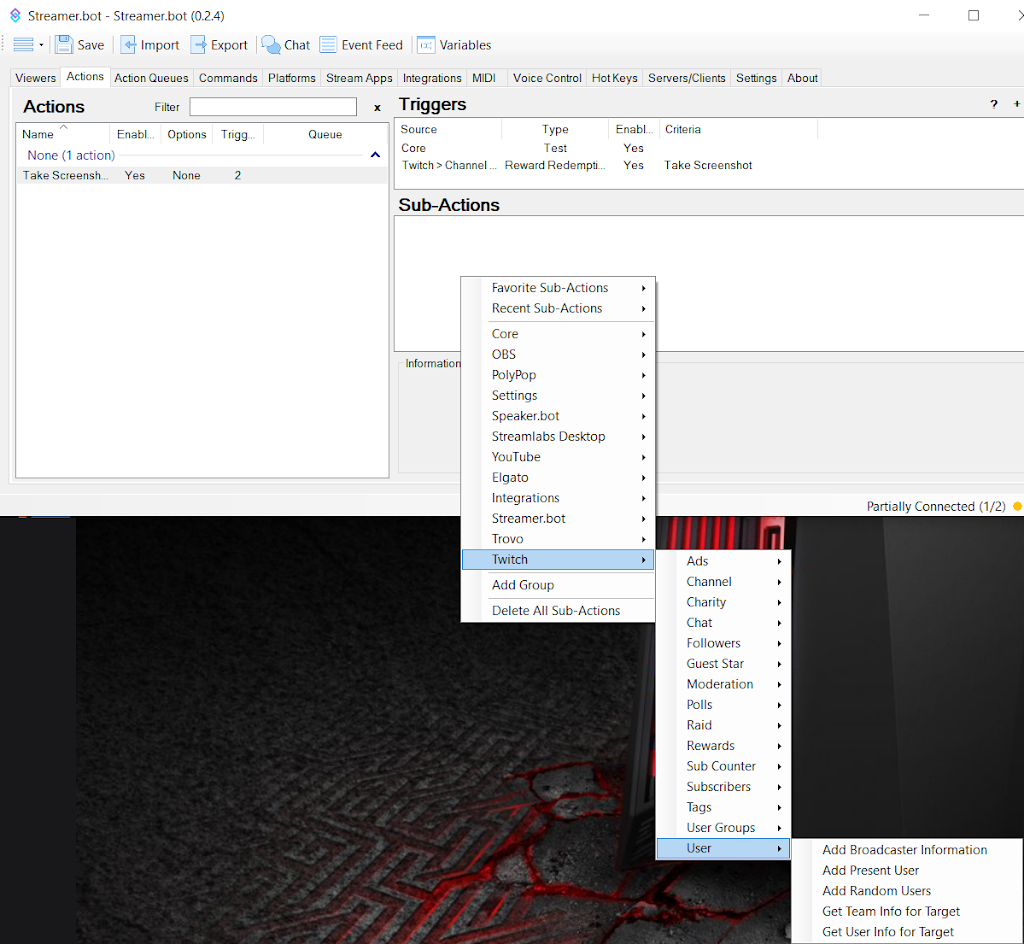
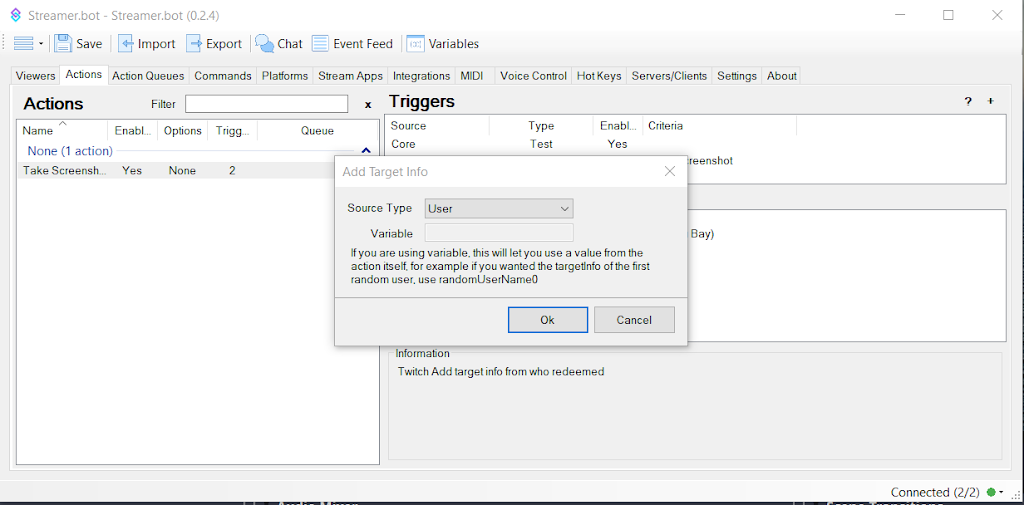
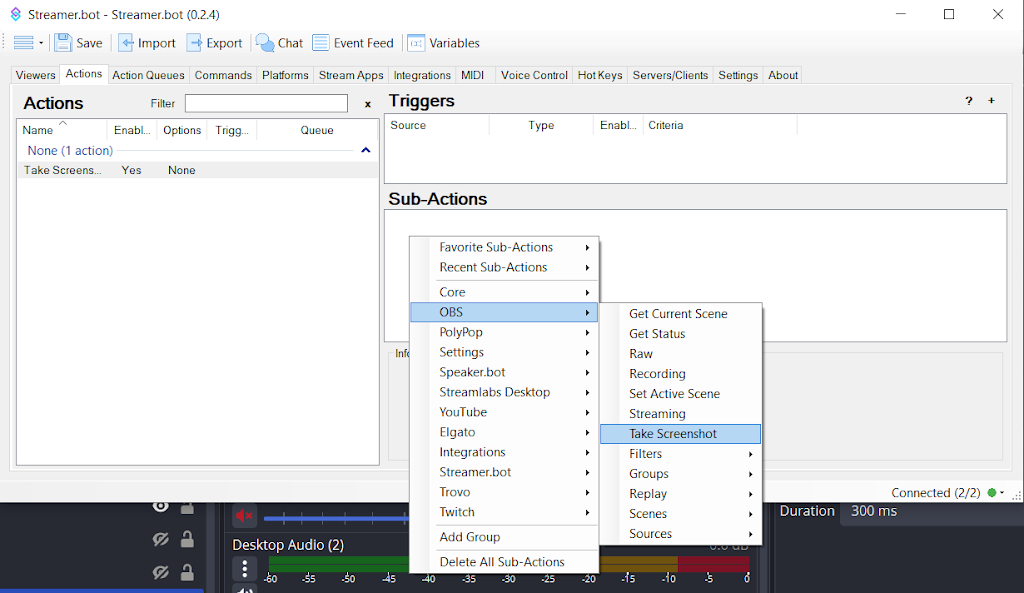
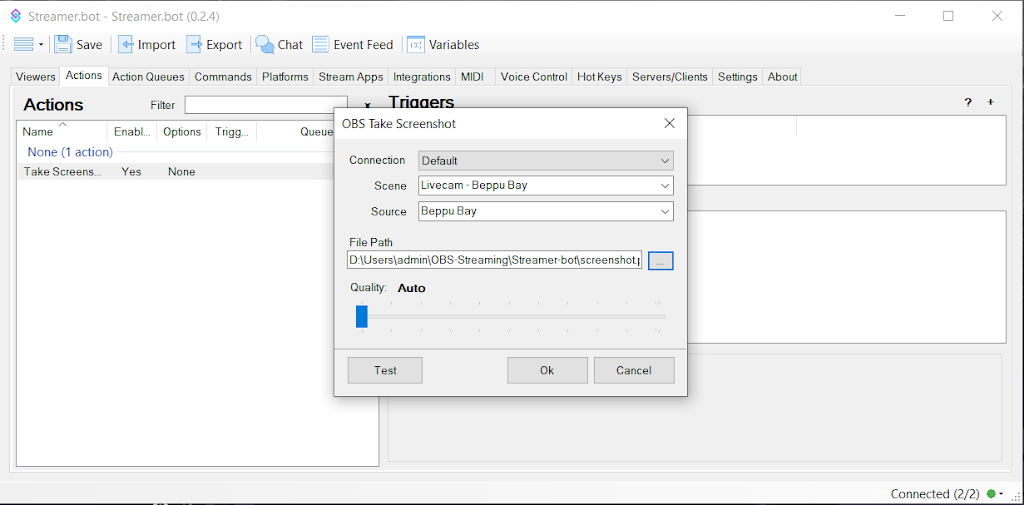
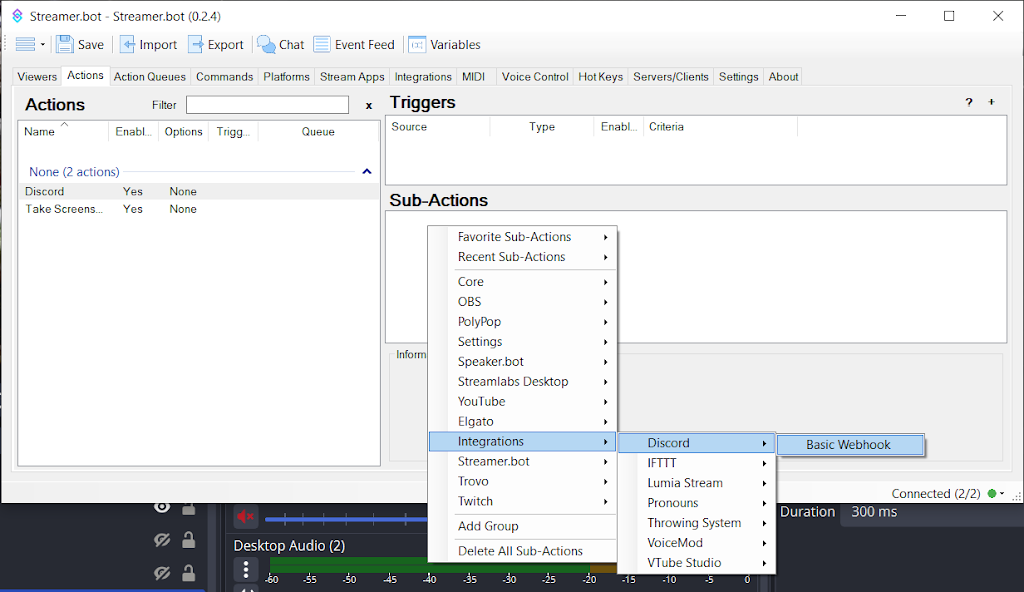
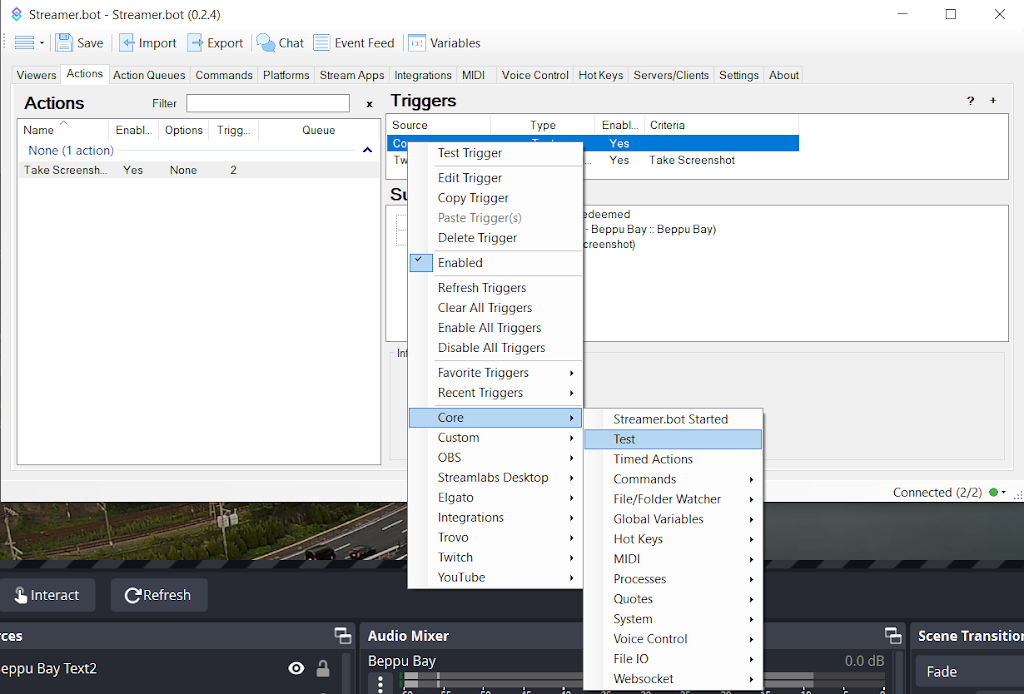
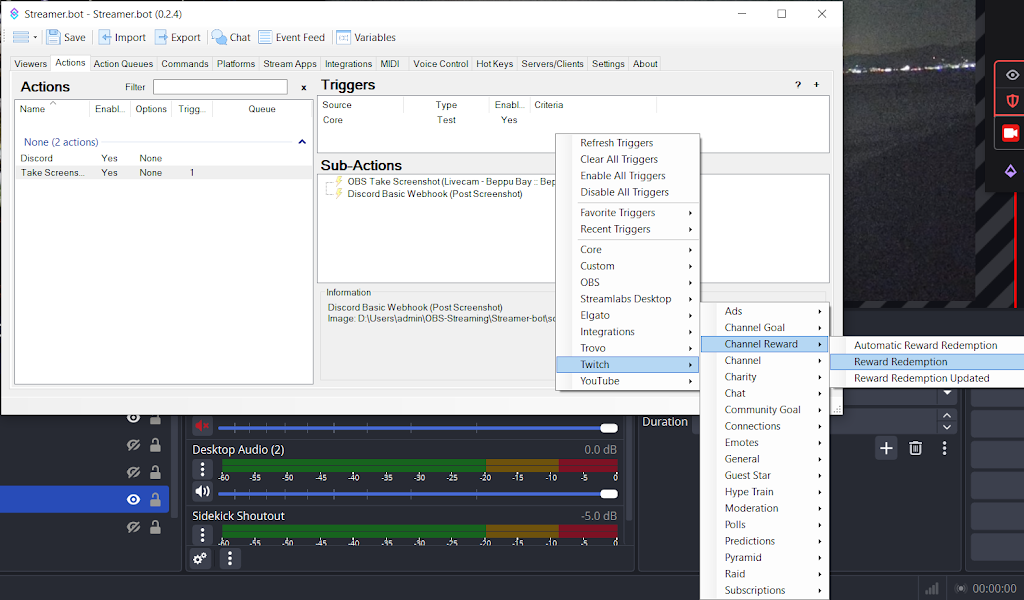
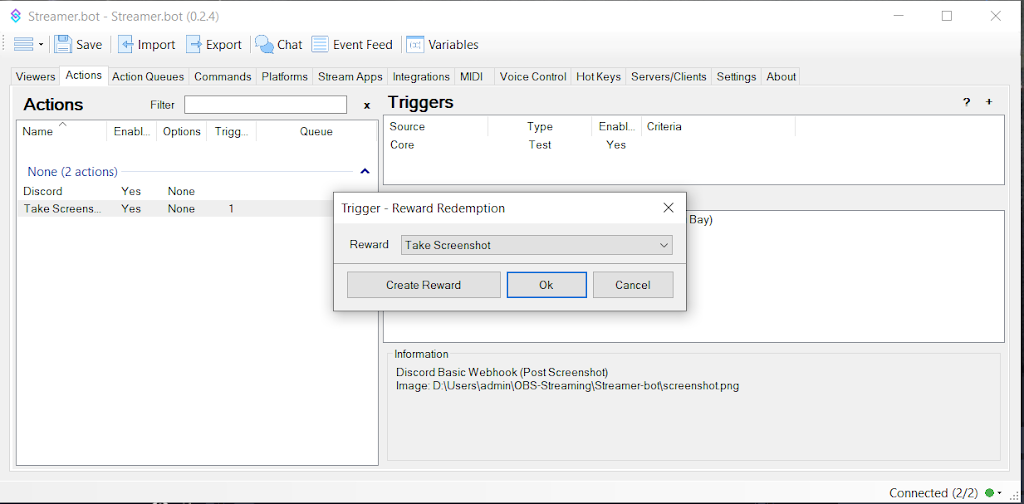
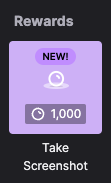
Select the channel reward (Take Screenshot) that was created in Step 7 and click Ok.
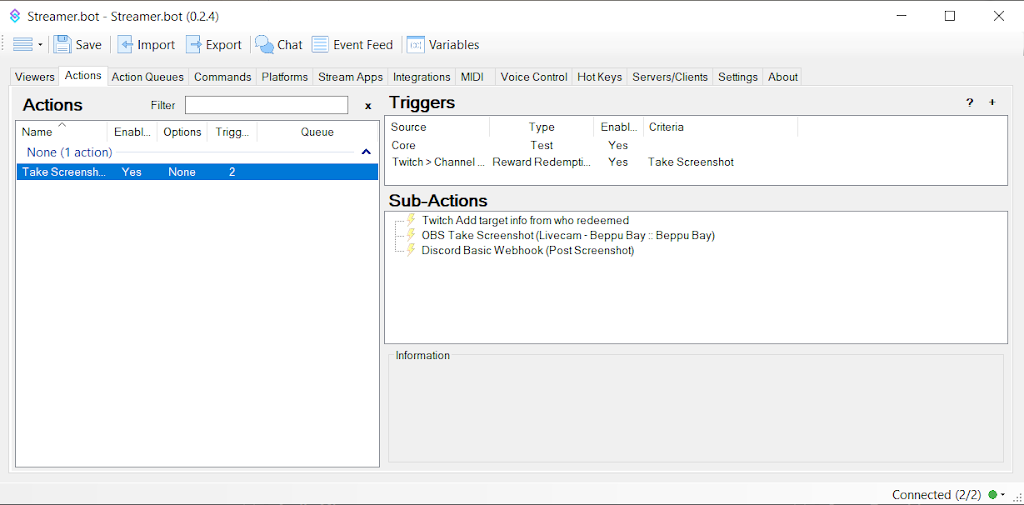
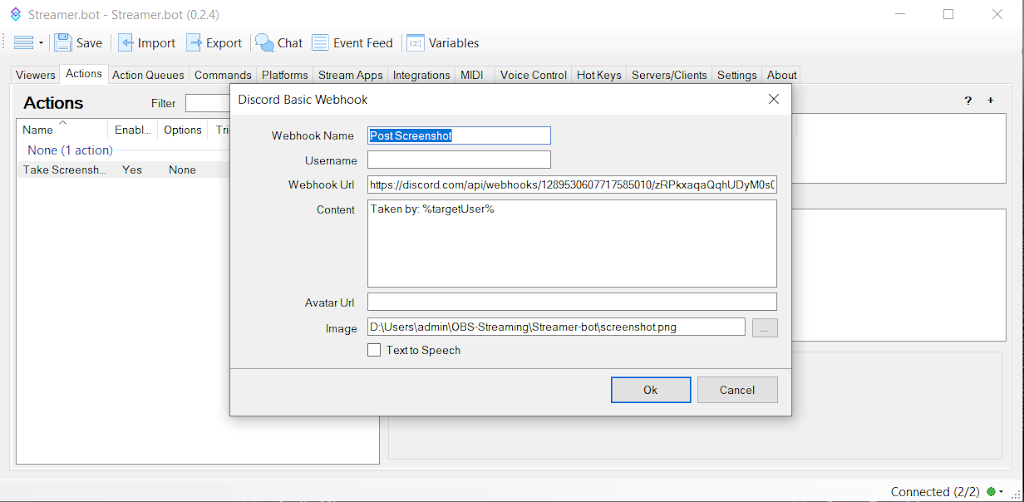
The following is the importable action script for the above. Copy and paste this into the import box in Streamer.bot. Two sub-actions need to be edited: 1) OBS Take Screenshot (select the live scene and the source and make sure to select the file path for the screen shot file noted in Step 12 above) and 2) Discord Basic Webhook (Post Screenshot) where you will need to add the Discord Webhook URL and the file path for the screen shot file (see Step 13 above).
U0JBRR+LCAAAAAAABACtVl2L2zoQfS/0P4hAoS1V8Lfl+1Za+gFtKc3u7cOlD7I0jsXaUirJ2Q3L/vcr2XE2jrNl72UdSCKdkTxzdGZGt8+fIbRowdLFX+jWD9xQ0hbccLFiGkCaWllkFXovDFOaL97srWhna6W93ddOU0NbeoC2oI1Q0mPhMlgGB4CDYVps7B68uBaW1YjVVEpo0EYJaZGGa6q5f6OlV4AoMvduUMmdlbFI9C7R0alxi2Pn1I9OvmX7V8muaUasFVK0Xfv3wUkPeuyut1hwOmGD9nsYN/PPMINGqIcF95GwCtIqDwjOqzLDCXCCyzRJccFZnLO04lV8YK5f9ruDDqaO9fMgadmA39PqDibIDWs6Dh+0aj8JY5XeOaOKNmZiNZ7dhefu6ABfrlSnGbyaOLHWqtt468ksba7pzjj2zu2v3RGo9sDrDGdKsk5rkPYcarVYrx3vx2SeEDoIiGrhefCGt3dvTtCB8pTneRCmBGdhkeAkZAkuWQGYVElZlDTP4rxanC61u42nJw+iU+RB4u/JN6MOfh2jU/dOIxnU/Ln3OKwoSVIGOM2L2HlcBJgkAcc5iWkRFTxjVTzzeAiWJ7ELK64wKWOGE5JHuAyc3DhEWUbyjAFkDwUbhk8Y7P3g10Qz8yQ5x4ZhIOHbWF6sBvdXL0unT+zE6rAjyc7CMb2Cx9VfxBYYbfFPKq7cJ8LvVOtKg7AwW7ihtvZLXr9GX31amE6DLx813brfWpih8gi57ouKRHDjEswPv3/7iCrRzLf83dFGWJ+BRXCKuRSQ0PMxHHuwf/CZr/F54NgDiPIyLyqcsiDHiRM8JozEuExIVECSkiouZ0uvQaxrn36u8j4giYScAmMpOKlHgx7+qBYhOdx4mT0+KcYi9d2X8j8deWdAj8Zn4ixrpa4udbM/3Leco50TyaEr/Bws0OWPL6hydROtLGxQMdvJnZgdKlZfNyUqd+iFpXoN9tJ58GJ+Oi1dwxNLim5d39FnI7VwYy/UagPA6jNldXCpFwxAACGEIeY0c30oS0NcVKR0zSiNqsi1Iijm4T9CMHkQhE8vmejxkhmS/2Jf0U43HPvFWfYGZkjIY5LzArMSiO/QCabAAVNXkOMqCksaRv+HmXQGnO2q/4GV4PEF96N/1VClp024aejGAD/CR3i/4Wg/XEQmW7jlbeva/HTSZZtR7ArsCvR238Ln4LtGuESagla0o/3RLev+jhgODLq2s1HaAvc3nL74LaNlMnA4v7MNKC7dzXWZLZ4/u/sXS19uzMoKAAA=